1. The New Layout
Arrange the chat, file changes, browser, and terminal the way you work.
In the desktop app's Code tab.
You choose what stays on screen.
A pane is one panel of the window, like the chat or a file. Drag a pane by its header to move it, drag its edge to resize it, and close the ones you don't use.
Ask yourself
What do you look at most while Claude works?
Don't. Keep every pane open because it's there.
Do. Keep the chat and one more, like the plan while Claude outlines a report.
Try it
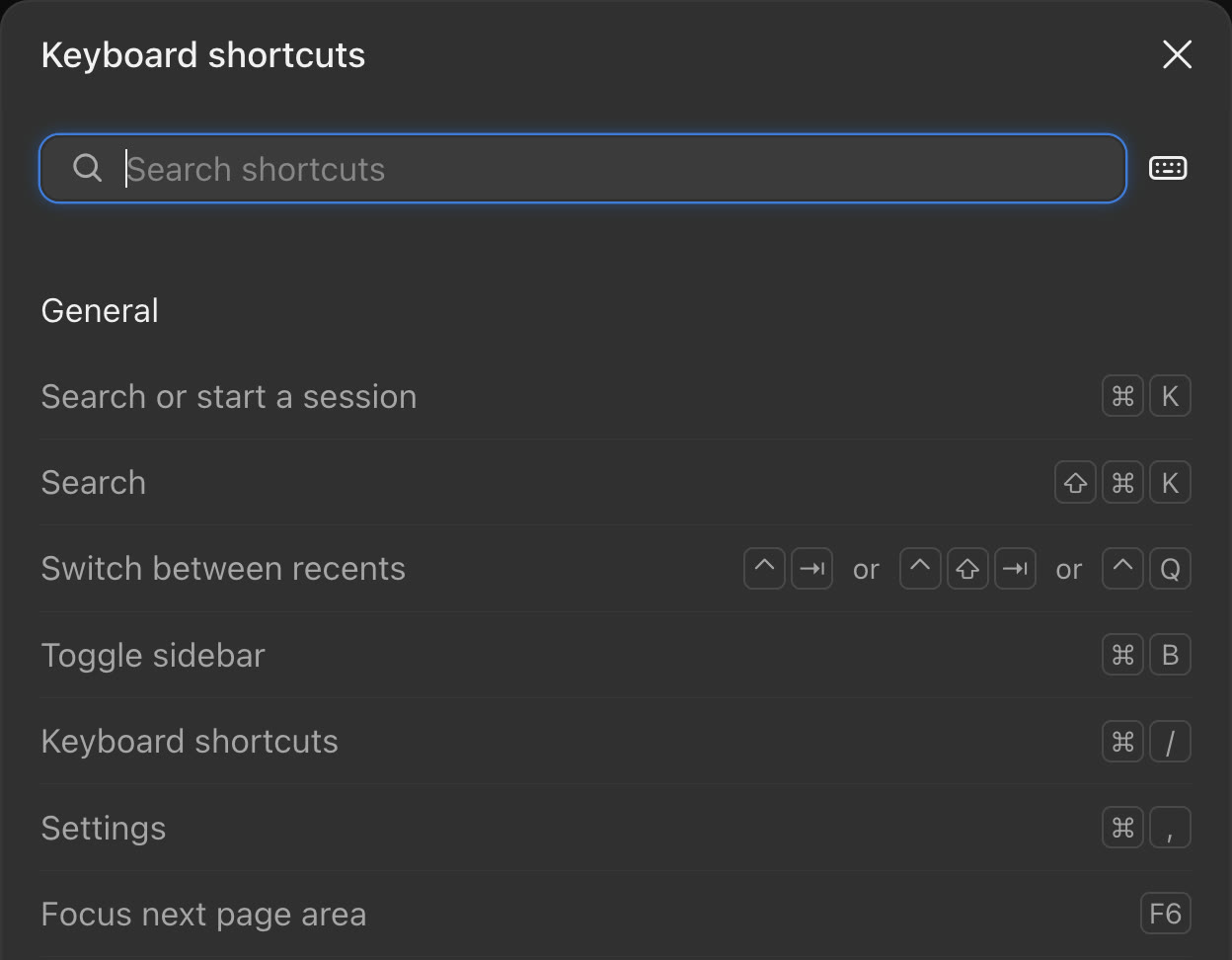
Press Cmd + / on a Mac to see every shortcut. On Windows, press Ctrl + /.
How to use it
- Open the Code tab in the Claude desktop app.
- Drag any pane by its header to where you want it.
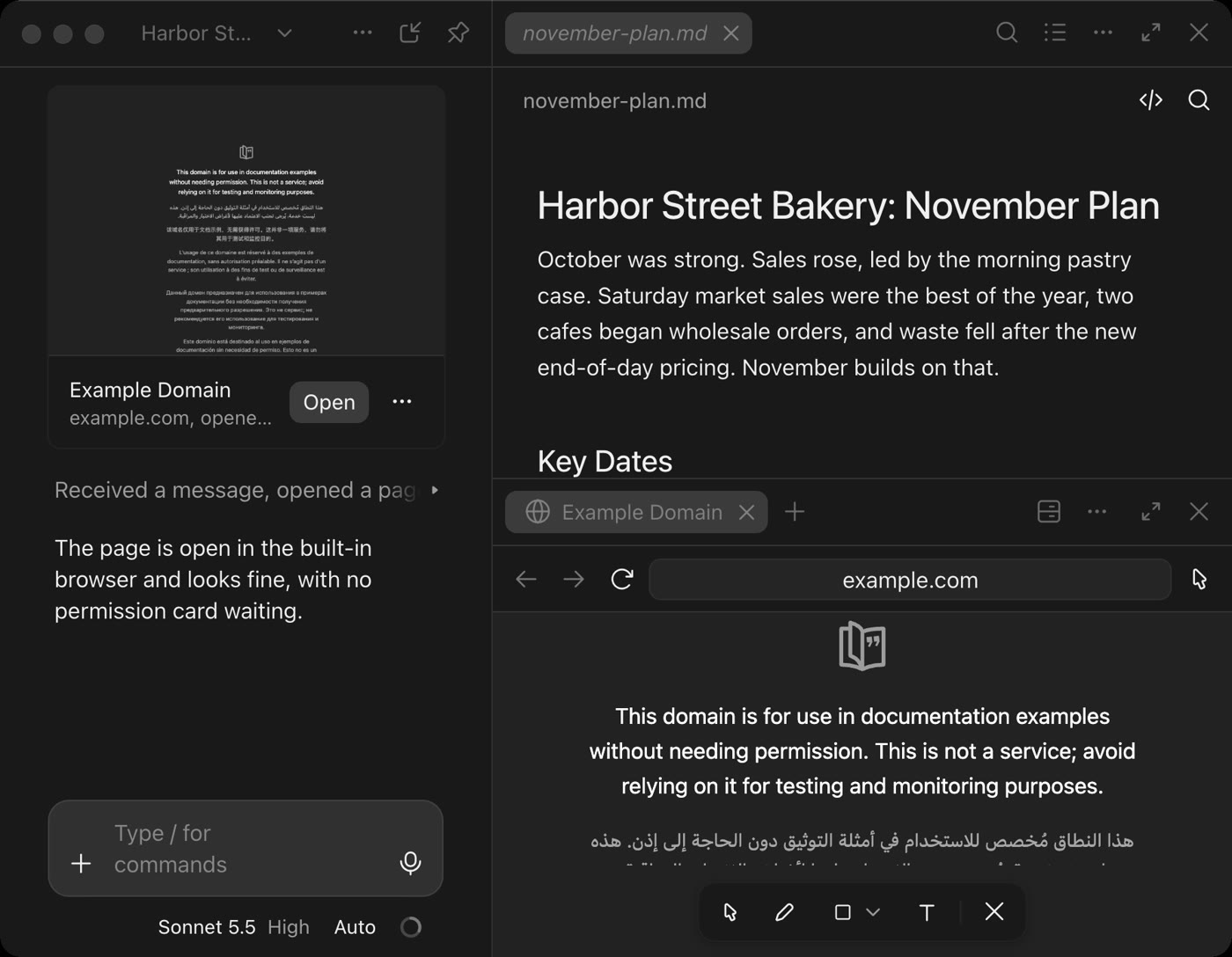
- Press Cmd + \ on a Mac or Ctrl + \ on Windows to close the pane you're in.
2. Side Chats
Ask a quick question without touching the job Claude is doing.
In the desktop app's Code tab.
A quick question on the side.
Claude can read the thread so far, and nothing you ask goes back into it.
Ask yourself
Claude is halfway through a long report. What do you want to check without breaking its focus?
Don't. Start a new chat and paste the whole thing in again.
Do. Press Cmd + ; and ask which claim has no source.
Paste this into the side chat
Looking at this report so far, which claim still has no source behind it? Answer in one line.How to use it
- Give Claude any job in a session, so it is busy. While it works, press Cmd + ; on a Mac or Ctrl + ; on Windows. You can also type /btw.
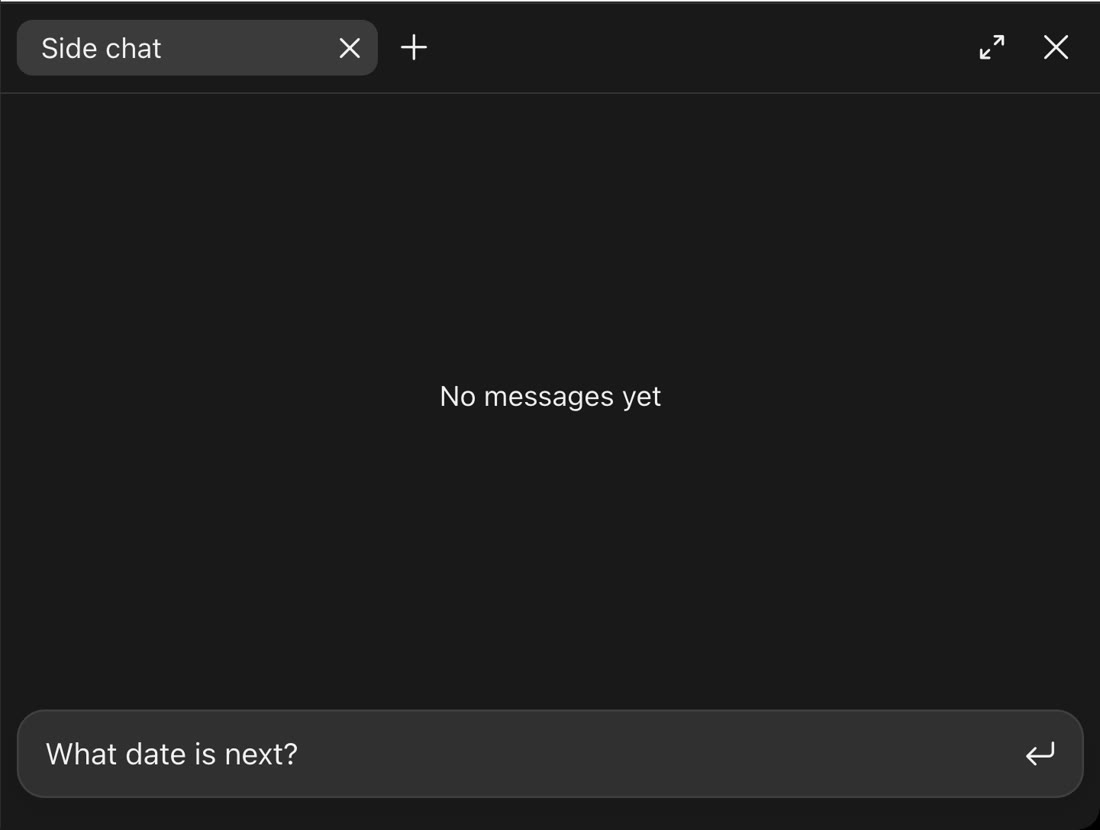
- Ask your question.
- Close it when you're done. Side chats are gone once you close the app, so copy anything you want to keep.
3. Split View
Watch two jobs side by side in one window.
In the desktop app's Code tab.
Both jobs stay on screen.
You see both jobs at once and stop clicking back and forth. The one you clicked last has focus.
Ask yourself
Which two jobs from this week could run at the same time?
Don't. Point both sessions at the same file. They can overwrite each other.
Do. Give each one its own job, like an email in one and a report outline in the other.
Paste this into a session
Draft an email from the notes in this folder. Save it as a new file called email-draft and leave everything else alone.How to use it
- Start one session for each job, in the folder that holds its notes.
- Hold Option on a Mac or Alt on Windows and click the second one in the sidebar. You can also right-click it and choose Open in, then Split view.
- To take one out, press Cmd + Ctrl + W on a Mac or Ctrl + Alt + W on Windows.
4. Sessions Inside Sessions
Send a side job to its own session, listed under the one you're in.
In the desktop app's Code tab.
A side job gets its own session.
When Claude suggests a separate task, Start runs it in another session and the sidebar lists it under this one.
Ask yourself
What side job keeps interrupting your main one?
Don't. Say yes to every suggestion. Each new session is one more thing to review.
Do. Start the job that stands on its own, like a list of sources. Choose Do it here when it depends on this work.
Paste this into a session
Finish the report here. If you spot a separate job along the way, suggest it as its own session and keep going on this one.How to use it
- Ask Claude to suggest separate jobs, or wait for it to offer one.
- Choose Start to run it in another session, or Do it here to keep it in this one. Other layouts label these differently.
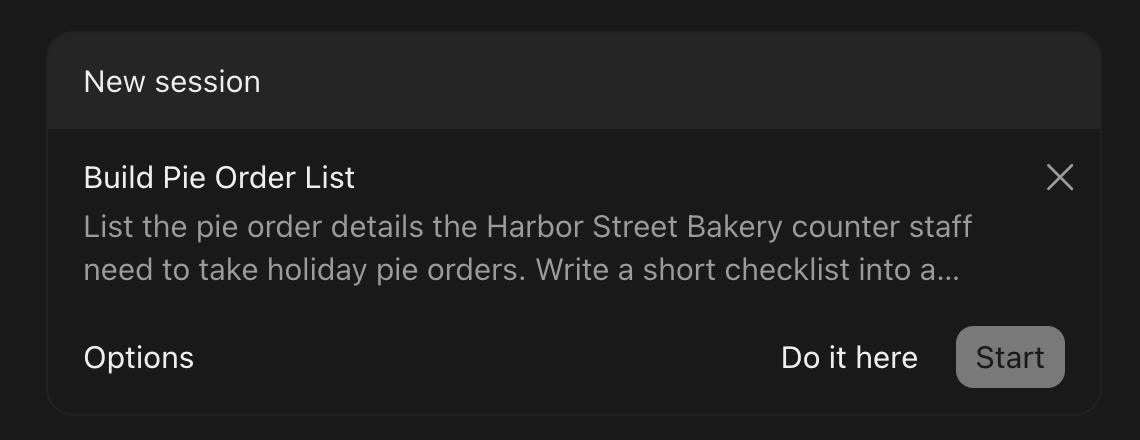
- Find the new session in the sidebar, under the one you started from.
5. Background Computer Use
Let Claude work in an app on your Mac while you keep using yours.
Research preview on Pro, Max, and Ultra. Not on Team or Enterprise. Running in the background is Mac only, on macOS 14 or later.
Claude uses the apps you approve.
It asks first, app by app, and works in those while you keep working. Browsers are view only, and terminals and code editors are click only.
Ask yourself
Which task lives in an app that has no connection to Claude?
Don't. Approve an app that holds private records.
Do. Approve one app for one session, and watch the first run.
Paste this into a session
Open Keynote and export the deck I have open as a PDF to my Desktop. Ask me before you change anything in the deck.How to use it
- Open Settings. If you see This computer, choose it, then System. If you don't, choose Capabilities. Turn on computer use.
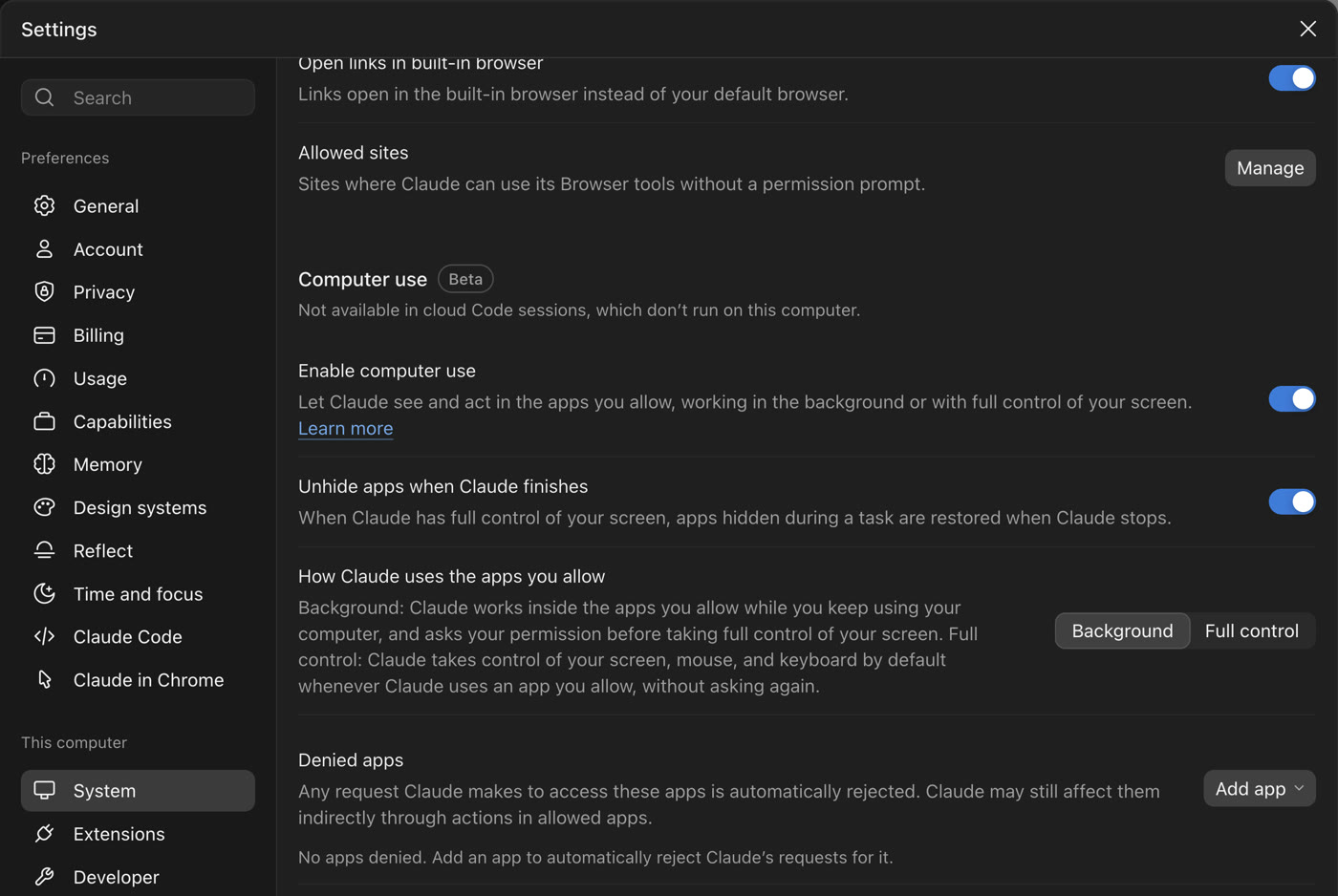
- On a Mac, grant Accessibility and Screen Recording when it asks.
- Open your deck in Keynote and paste the prompt. Choose Allow for this session or Deny when Claude names an app.
6. Projects
Keep one stream of work in one conversation, with a thread for each task.
Public beta on Pro, Max, and Ultra, rolling out gradually. Not on Team or Enterprise yet.
One long conversation.
Claude starts a thread per task, usually in the cloud, so those keep going after your laptop closes. You can check them from your phone.
Ask yourself
What work do you keep coming back to with new questions?
Don't. Upload customer records to a cloud project.
Do. Upload a folder of finished reports and keep asking it questions.
Paste this into your project
Go through the uploaded reports and list every claim with no source. Start a separate thread for each report that has one.How to use it
- In the Code tab or at claude.ai/code, select Projects in the sidebar or under More. If it isn't there yet, join the waitlist at claude.com/form/projects.
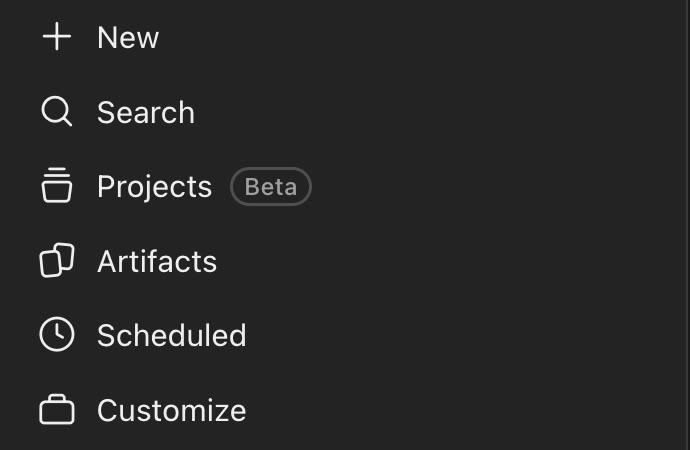
- Follow Get started if you see it, then select New project and give it a name.
- Add your report files under Context before you paste the prompt. On your first project, Claude may take a turn on its own, and that turn uses your plan.
7. Remote Control
Steer a session on your computer from your phone.
On Pro, Max, Ultra, Team, and Enterprise. On Team and Enterprise, an Owner has to turn it on first.
The same session, on a second screen.
Claude keeps running on your computer, so the computer has to stay awake and online. Your phone sends the messages, and the session reconnects when the computer is back.
Ask yourself
Which long job could you start before you leave your desk?
Don't. Quit the desktop app. That takes the session offline.
Do. Start the job, turn this on, leave the app open, and keep the computer awake.
Type this in a session
/remote-controlHow to use it
- Type the command, or turn on the Remote Control switch in the Environment card.
- Open the Claude app on your phone, or go to claude.ai/code, and find the session.
- While it's connected, the session's transcript is stored on Anthropic's servers.
8. Built-In Browser
Have Claude open and check a web page inside the desktop app.
In the desktop app's Code tab.
A clean browser, with none of your saved logins.
You see the same page Claude sees. When a site permission card appears, choose Allow once, Always allow, or Deny.
Ask yourself
Which page should someone check before it goes out?
Don't. Assume it's signed in to your accounts.
Do. Have it check a public page at desktop and phone width.
Paste this into a session
Open the page at the link below in the built-in browser. Check it at desktop and phone width and tell me anything that looks broken.How to use it
- Press Cmd + Shift + B on a Mac or Ctrl + Shift + B on Windows.
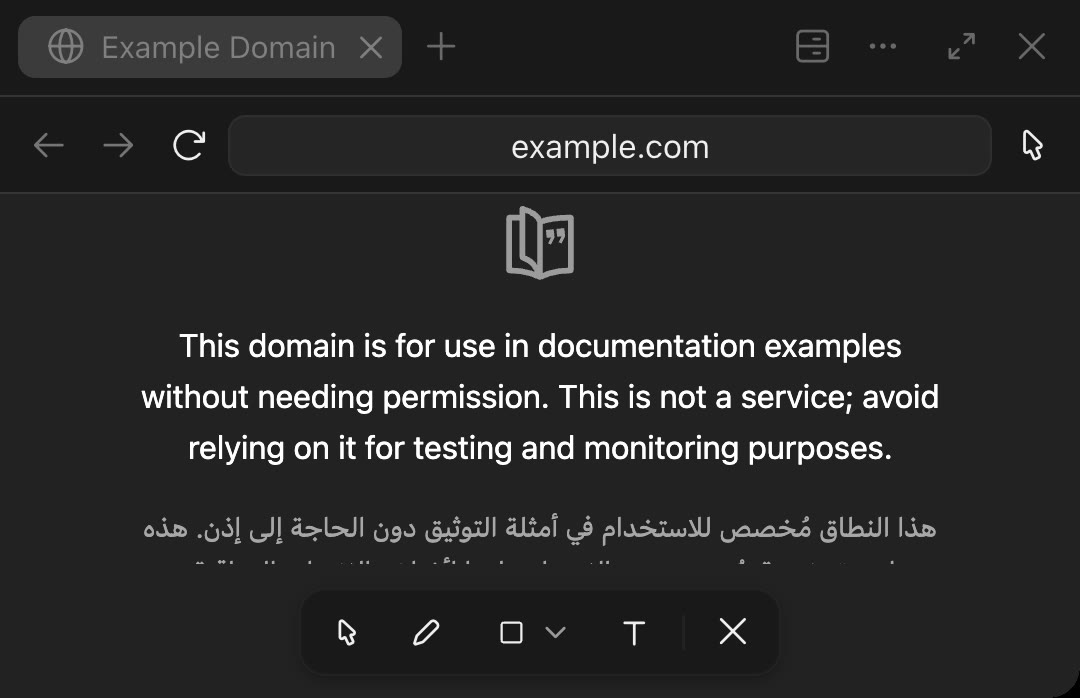
- Paste the prompt with your public page link under it, and allow the site when it asks.
- To point at one part of the page, press Cmd + Shift + S on a Mac or Ctrl + Shift + S on Windows, then click it.
9. Decks, Designs, and Motion
Ask for a deck, design, doc, or short animation in the chat.
Docs, slides, and designs are in regular Claude on every plan. In the Code tab they need a paid plan, and an admin may have to turn them on. Claude Motion, for animation, is in beta on Team and Enterprise.
A first draft you can edit.
Claude builds it, you change what's wrong, and then you export it. Decks go to PowerPoint or PDF, and docs go to Word or PDF. Motion pieces go to MP4.
Ask yourself
What did you last build by hand in Slides or Canva?
Don't. Send it because it looks finished.
Do. Check every number and date against your own source first.
Paste this into a session
/slides A 6-slide deck that teaches a new team member how we welcome a new customer. Use the outline in this folder. List any number you're unsure of at the end.How to use it
- Start a session in the folder that holds your outline, then paste the prompt. For a design, use /design. If the command isn't in the list, ask in plain words.
- Tell Claude what to change until it's right.
- Open the export menu and pick your format.
10. Pages You Can Share
Turn your work into a web page you can open again and share.
On Pro, Max, Ultra, Team, and Enterprise. Some company security settings turn this off.
A private page, made from one sentence.
Claude calls this an artifact. Nobody else can see it until you press Share. On Team and Enterprise, you can share with named people or your whole company.
Ask yourself
What do you keep explaining the same way?
Don't. Put customer details on a public link.
Do. Make a page of this month's dates and share it with the team.
Paste this into a session
Make an artifact that shows the launch dates I pasted below as a simple calendar the team can check. Ask me about anything missing.How to use it
- Paste the prompt into a session, with your dates under it.
- Press Share at the top of the page when you're ready.
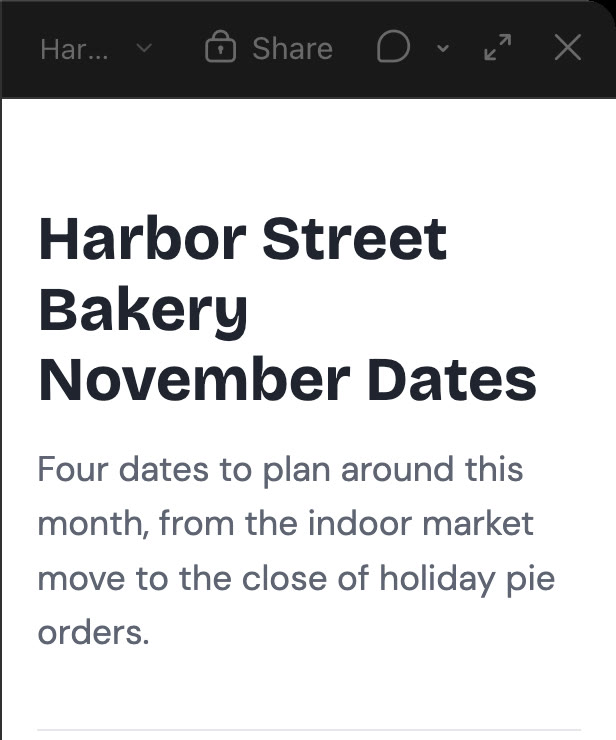
- Find your pages again at claude.ai/code/artifacts, or type /artifacts.
11. Slash Commands
Type / to run a saved job in one move.
In the desktop app's Code tab and in Claude Code.
A shortcut for instructions you repeat.
Type / at the start of a message to see the list. You can send one while Claude is working. Skills you can run by hand show up here too, once Claude has loaded them.
Ask yourself
What instructions do you keep pasting into chat?
Don't. Paste the same instructions again next week.
Do. Turn them into a skill with a short description of when to use it.
Paste this into a session
Turn the weekly-update instructions I just pasted into a skill called weekly-update. Keep the description short and say when to use it.How to use it
- Type / in the message box and look through the list.
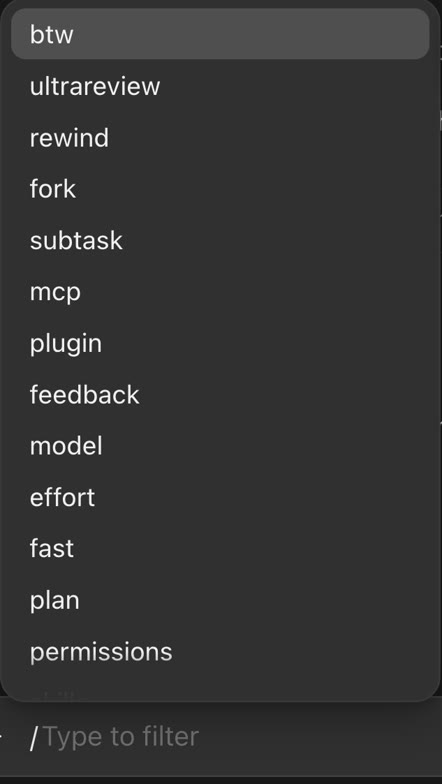
- Try /context to see how full this session is.
- Paste your instructions into a session, then paste the prompt to make your first command.
12. Mods
Change how Claude's screen looks and behaves by describing what you want.
In Claude Code, the desktop app's Code tab, and VS Code. A Team or Enterprise admin can limit them.
A small add-on that runs with your permissions.
It can read and write your files and read your secrets, with no sandbox around it. Ask Claude to explain a mod before you use it.
Ask yourself
What do you check so often it deserves a spot on screen?
Don't. Install one from anyone you don't trust.
Do. Start with a small one Claude writes for you.
Paste this into a session
Make me a mod with a small band above the chat that shows which folder this session is working in.How to use it
- Paste the prompt into a session.
- Ask Claude to explain the mod and show you its code. Choose Enable for this session only when you're ready to run it.
- To turn one off, type /plugin and open the Installed tab.
13. Claude Duet
A separate app you message like a person, and it can message you first.
Research preview on Pro, Max, and Ultra in the US, through a waitlist. Not on Team or Enterprise.
Its own app, on your phone or the web.
You type or speak to it. It asks before it sends a message, pays for anything, signs, or deletes. It doesn't place calls or send texts to other people, and it doesn't connect to Microsoft 365.
Ask yourself
What would you like a nudge about before your day starts?
Don't. Count on it for team work yet. It's personal, and it's a preview.
Do. Join the waitlist with the email on your Claude account. Invitations go to that address.
Send this in Claude Duet
Send me a note each morning with the one meeting I should prepare for.How to use it
- Go to claude.com/product/claude-duet and select Join the waitlist.
- Install the app when your invitation arrives. It's on iPhone, Android, and claude.ai.
- Sign in, connect your calendar, and send the prompt.
14. Auto-Compact at 400k
Choose how full a session gets before Claude summarizes it.
In Claude Code and the desktop app's Code tab.
Older messages turn into a summary.
This asks for that point at 400k tokens, a token being a small piece of text. Your model or admin can set a smaller limit. A shorter session can use less of your plan, and the best setting depends on the job.
Ask yourself
Do your sessions run long enough to need this?
Don't. Leave a must-follow rule only in the chat and expect every word to survive.
Do. Keep must-follow rules in CLAUDE.md, the file Claude reads at the start of each session, then switch to 400k.
Type this in a session
/autocompact 400000How to use it
- Type the command and press Return.
- Keep working. Claude saves your choice for this model.
- To go back, type /autocompact auto.